.png) ) on that row.
) on that row. Change a Shift
There are times when it may be necessary to make changes to shifts, such as adding a pay code to a shift because of a change to the collective agreement or perhaps something was missed during the setup of a shift.
To change a shift:
1. Go to Scheduling | Shifts
2. Find the shift you want to modify and click the brown pencil icon () on that row.
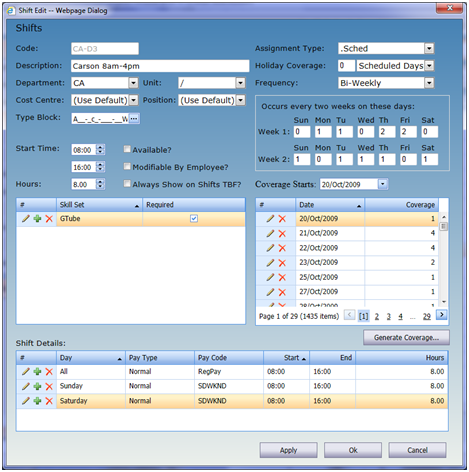
3. Make the necessary change to the shift. If you are adding a Pay Code to the Shift Details, click the green plus sign icon (.png) ) in the Shift Details grid and enter the information on the new row. Click the Save changes button (
) in the Shift Details grid and enter the information on the new row. Click the Save changes button (.png) ) on the new row.
) on the new row.
4. Click the OK button to save your changes.
To apply this change to all open assignments:
1. Go to Tools | Shift Handling
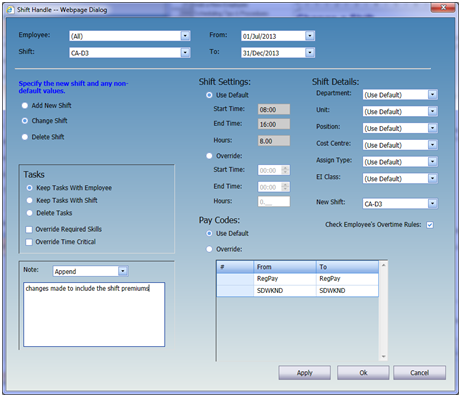
2. Select (All) in the Employee drop-down list.
3. Select the shift that was just changed in the Shift drop-down list.
4. Choose the same shift in the New Shift drop-down list.
5. Enter the date range for the change.
6. Click the OK button to apply the change.