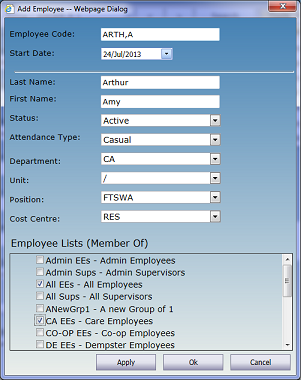
Add a New Employee
To set up a new employee in EMS, first add the employee, then enter the appropriate information in various HR pages.
1. From the EMS Home page, select Human Resources.
2. Go to Tools | Add an Employee:
3. The following fields are required for all new employees:
Employee Code - use a format consistent with other employees
Last Name - enter the employee's last name
First Name - enter the employee's given name
Status - unless the employee will not be working, select Active
Attendance Type - select the employee's attendance type for filtering and reporting
Department - select the employee's default or home department
Unit - select the employee's default or home unit
Position - select the employee's position
Cost Centre - select the employee's default or home cost centre
4. Select the Employee Group(s) of which the employee is a member. Only operators with access to the selected group list(s) will be able to view the employee.
5. When complete, click the OK button.
6. Go to the Employee Lists page and check each of the appropriate applications to ensure that the employee appears in the general list of active employees:
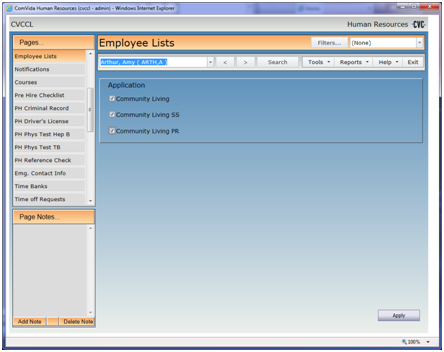
7. When completed, click the Apply button.
8. Now that the employee exists in the system, complete the entry of the rest of the employeee information. Start by going back to the Master page and then proceed to the remaining HR pages. Remember to process data as necessary. To process pending data (immediately or at a future date), go to Tools | Process HR Data.